Skip to content

Edit Navigation Markers


As you known, we provide 3 types of Navigation marker. Now you need to know, how to edit your already created Navigation markers in your virtual tour.

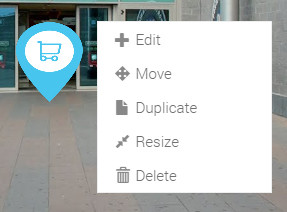
To do this, you should click your second mouse button on your Navigation marker to open it's related options. For "Simple Navigation marker", we provide following options:

  • Edit - This option enables it's properties to edit content and change most of things. 
  • Move - With this option, you can move it's location with your mouse drag and drop effect.
  • Duplicate - With this option, you can duplicate selected Navigation marker. If your virtual tour needs more than 1 Navigation marker on single panoramic view with same Navigation marker you should use this option.
  • Resize - This option gives user to change Navigation marker image size. 
  • Delete - With this option, you can delete the selected Navigation marker. 
 

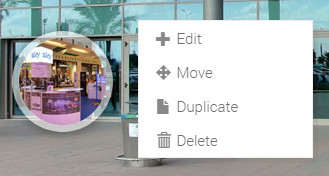
This is lens Navigation marker and if you click your second mouse button on this Navigation marker you will see a following options.

  • Edit - This option enables it's properties to edit content and change most of things. 
  • Move - With this option, you can move it's location with your mouse drag and drop effect.
  • Duplicate - With this option, you can duplicate selected Navigation marker . If your virtual tour needs more than 1 Navigation marker on single panoramic view with same Navigation marker you should use this option.
  • Delete - With this option, you can delete the selected Navigation marker. 
 

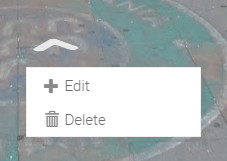
Arrow Navigation marker is one of most inovative Navigation marker type. On it's editing option, you can see the following options.

  • Edit - This option enables it's properties to edit content and change most of things. 
  • Delete - With this option, you can delete the selected Navigation marker.